

-
MacOS Instructions
Adding the Department Printer on your Mac
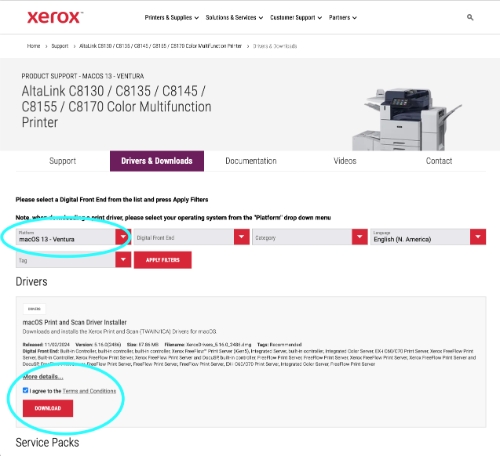
CLICK HERE TO DOWNLOAD THE XEROX PRINTER DRIVER (the download link will not work using Firefox, use Chrome, Safari, or Edge)
1. Start the downloaded Xerox drivers. (If you've attempted to add the department printer before, remove your attempted installation first.)
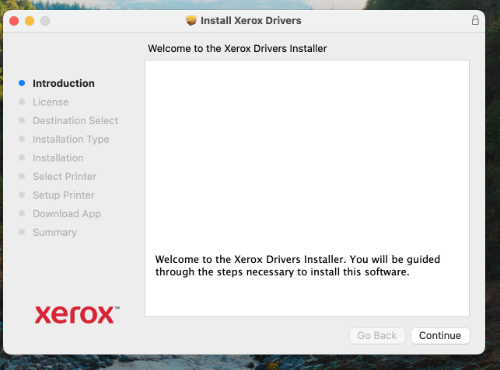
2. Start the driver installation and follow the steps.
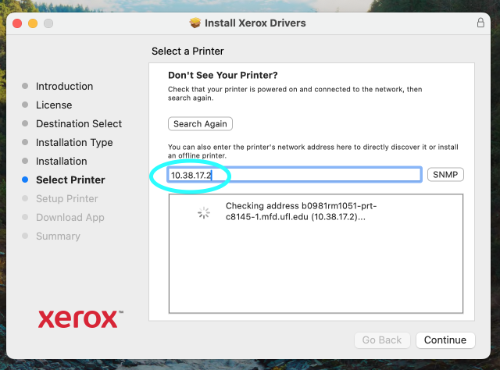
3. Click on the icon "Don't See Your Printer?".

3. Type the IP:10.38.17.2 in the text box and wait until the driver find the Machine:
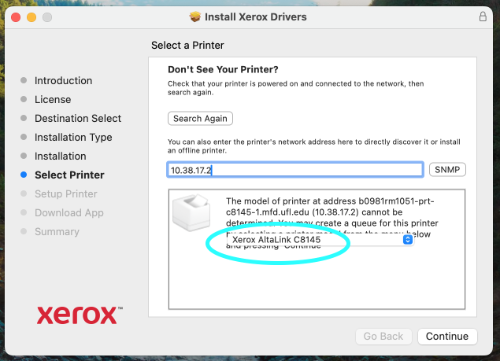
4. Select The printer model: Xerox AltaLink 8145 and click continue to finish the installation process.
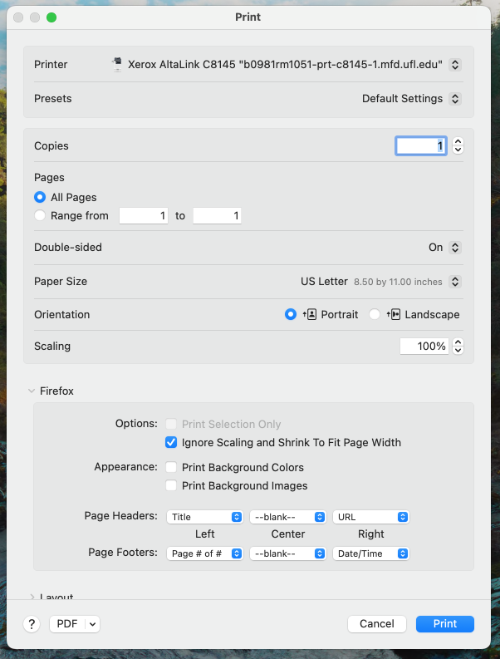
5. Once installed, select the correct machine in any software like Word, Excel, Safari etc in order to print. In non-OS browsers like Chrome, Firefox, or Edge you will need to select the "print using system dialogue" option.

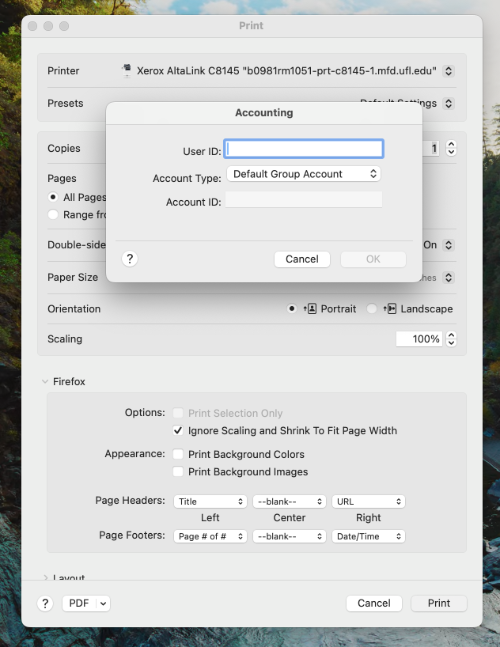
6. If the installation was successful, a window asking for a code will show up. Type your lab or PI code (Same code you used in the old printer)
IF YOU HAVE ANY QUESTIONS OR PROBLEMS IN THE INSTALLATION PROCESS CONTACT : Javier Real Or Thomas Allain
-
Windows Instructions
Mapping an IP Printer from a PC (Windows 10, 11)
Tested on Windows 10, 11
CLICK HERE TO DOWNLOAD THE XEROX DRIVER PRINTER (the download link will not work using Firefox, use Chrome, Safari, or Edge)
Instructions
1. Remove the old printer from your computer. Then select your operation system and click download.
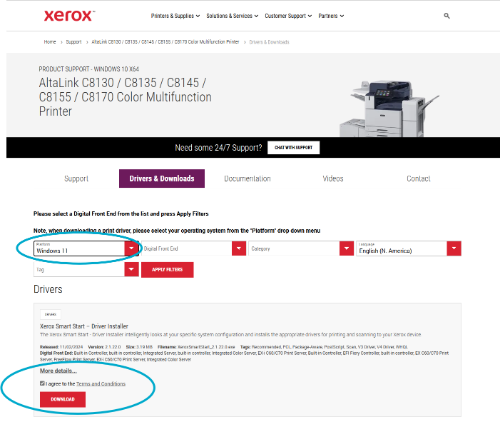
2. Open the driver from your downloads, and click the agree button that appears.
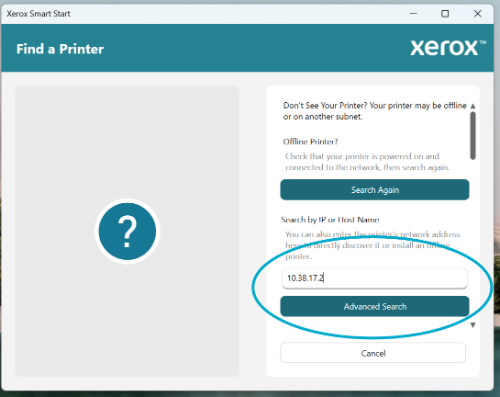
3. Click the "Don't See Your Printer?" option and type the IP address of our department printer: 10.38.17.2.
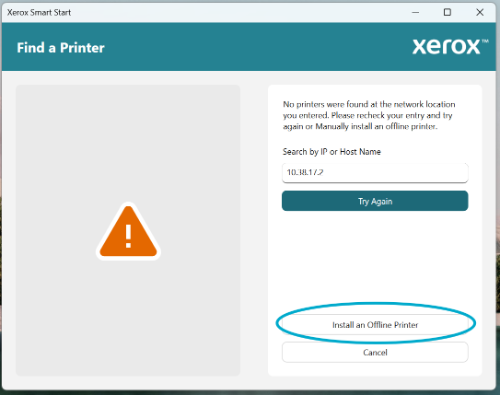
4. The drive may say "no printers were found at the network location you entered..." Click "Install an Offline Printer" and continue with the installation.
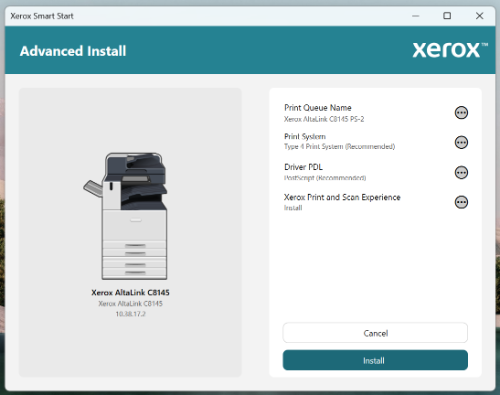
5. Scroll and select the correct model of printer: Xerox Altalink C8145. Click "Select This Model", then click "Install".

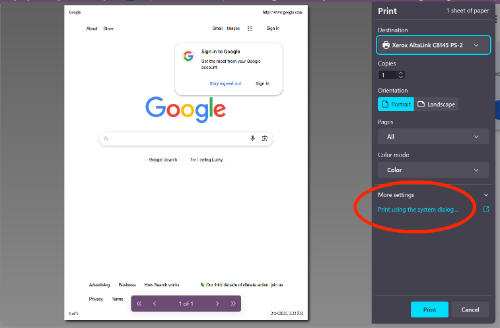
6. When printing from a non-Microsoft browser such as Firefox or Chrome select the "print using system dialogue" option to open the print prompt in a Windows OS window
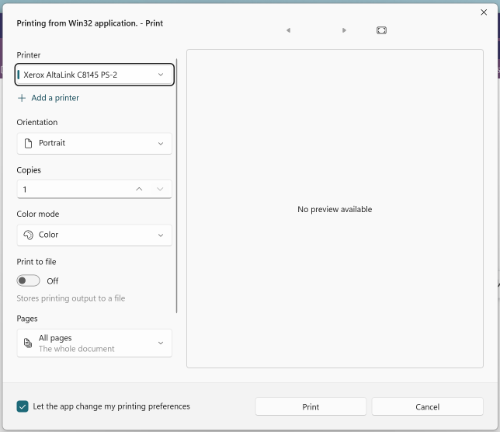
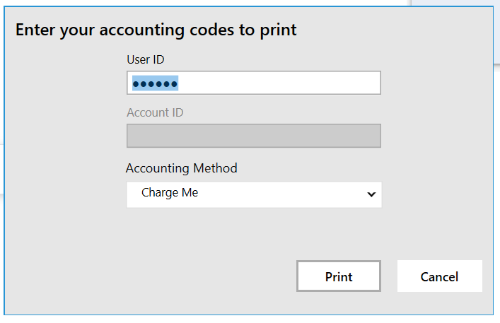
7. Change any options you need and click "print". You will be prompted for a print code. If you are not, your file will not print.
IF YOU HAVE ANY QUESTIONS OR PROBLEMS IN THE INSTALLATION PROCESS CONTACT : Javier Real or Thomas Allain