

-
L2TP VPN Setup on Windows
Windows 11 Instructions
VPN connection is needed for access to certain website and applications. Think of using the VPN as being on campus and plugging directly into Ethernet connection. Any traffic coming from your computer is routed through a UF internet connection.
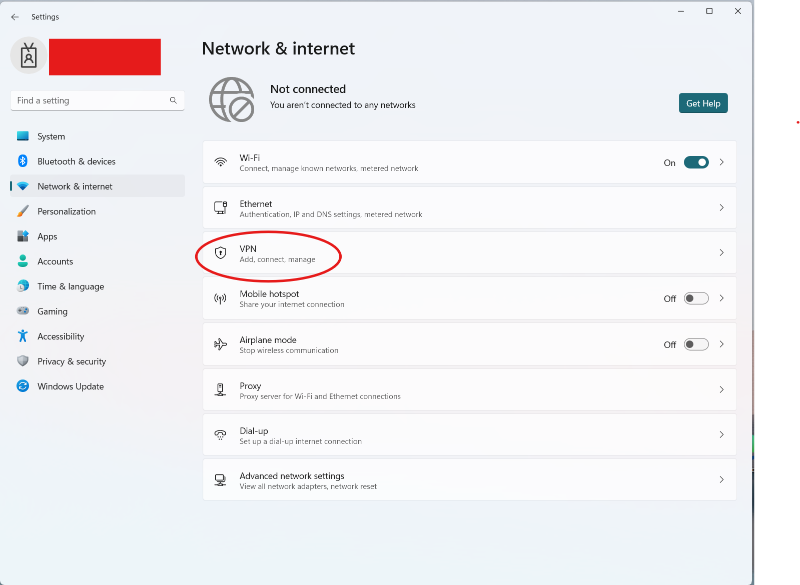
Step 1 - Visit the "Settings" application on Windows. Go to "Network & Internet" and click on "VPN"
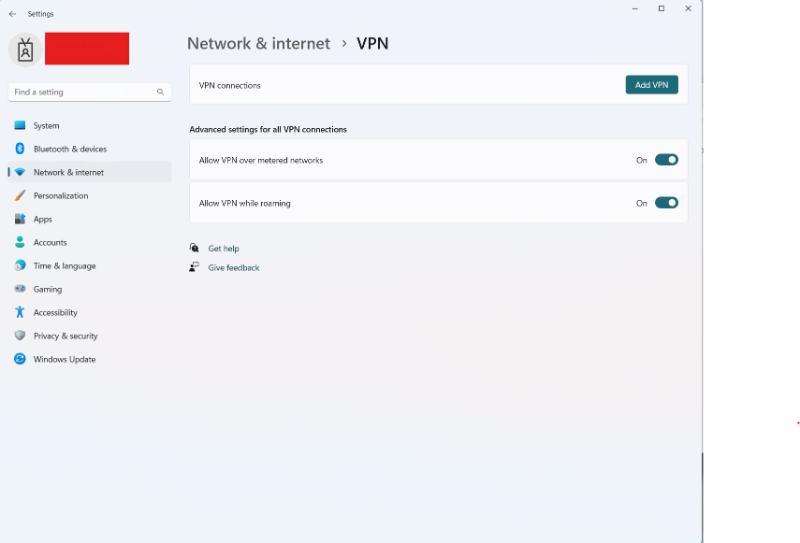
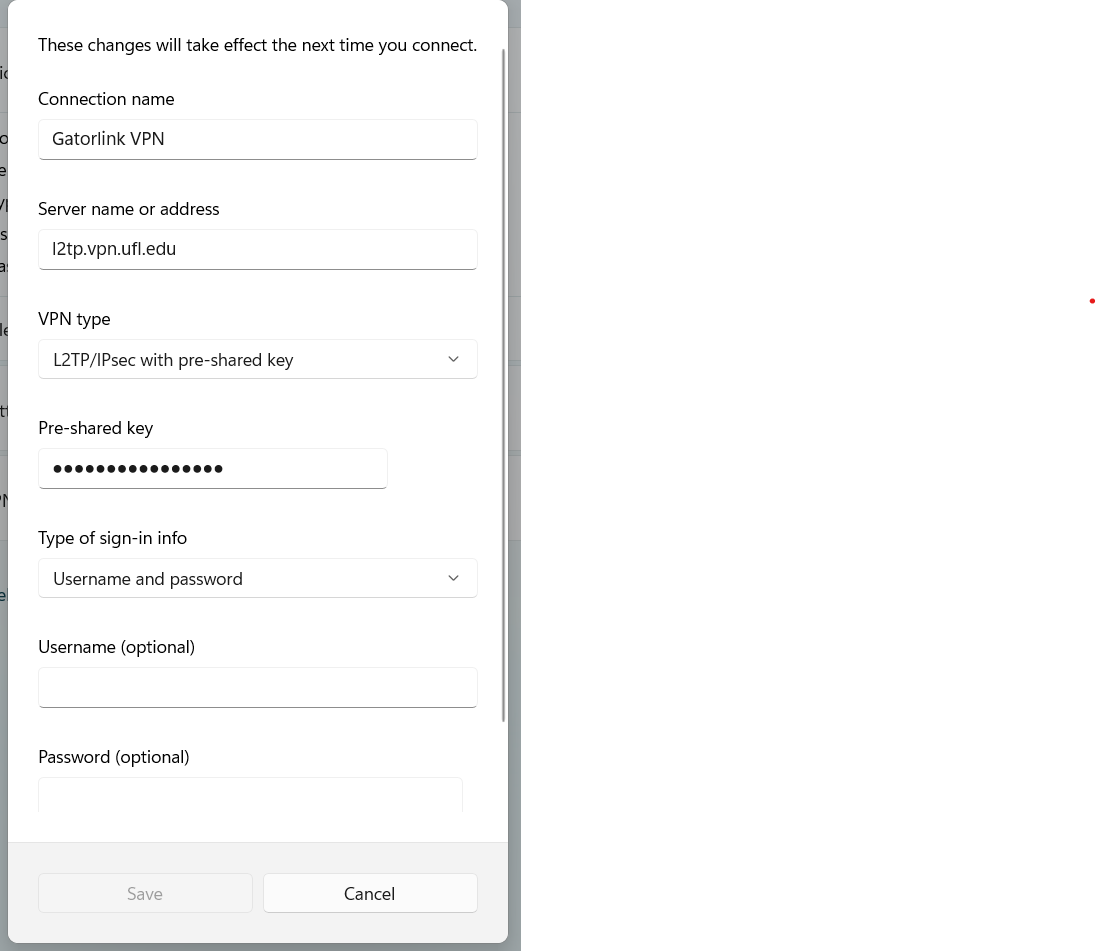
Step 2 - Click "add VPN" and fill out the form
- VPN provider = "Windows (built-in)"
- Connection Name = [whatever you want it to be called]
- Server name or address = "l2tp.vpn.ufl.edu" (note: first character is lowercase L "elle")
- VPN type = "L2TP/IPsec with pre-shared key"
- Pre-shared key = "gator+vpn!"
- uncheck "remember my sign-in info"
- everything else should be left as default
- click "save"
Step 3 - Launch the VPN
One a VPN is defined, you can launch it from the same "Network & Internet" page in "Settings" as above, or you can go to the Network icon in the lower right hand side of the screen, click on it, click your new VPN profile and click connect.
Username: [username]@ufl.edu
Password: [Gatorlink Password]NOTE: You will get a Duo 2FA push to your default device for the VPN to be initiated.
-
L2TP VPN Setup on MacOS
MacOS Instructions
VPN connection is needed for access to certain website and applications. Think of using the VPN as being on campus and plugging directly into Ethernet connection. Any traffic coming from your computer is routed through a UF internet connection.
Step 1 - Visit the "System Settings" application on your Mac. Go to "Network" and click on "add VPN Configuration" button. Choose "L2TP over IPSec..."

Step 2 - Fill out the form with the following information
- Display name = [whatever you want it to be called]
- Configuration = "Default"
- Server address = "l2tp.vpn.ufl.edu" (note: first character is lowercase L "elle")
- Account name = "[username]@ufl.edu"
- User authentication = "Password"
- Password = [your Gatorlink password]
- Machine authentication = "Shared secret"
- Shared secret = "gator+vpn!"
- click "Create"


Step 3 - Click the VPN icon now listed in "Network" and use the switch to turn the VPN "on" and connect to the VPN.

NOTE: You will get a Duo 2FA push to your default device for the VPN to be initiated.
Step 4 - You can add the VPN to your control center to add a quick "connect" and "disconnect" switch.
- in "System Settings", go to "Control Center" and scroll to the bottom. Find VPN and choose "Show in Menu Bar"

